Xaringan Xaringan Xaringan
Chocolate Theme
December 27, 2018
Yongfu Liao
yaml
---title: "Xaringan Xaringan Xaringan"subtitle: "Chocolate Theme"author: "Yongfu Liao"date: "`r format(Sys.Date(), '%B %e, %Y')`"output: xaringan::moon_reader: css: [default, chocolate, chocolate-fonts] lib_dir: libs nature: beforeInit: "macros.js" highlightStyle: github highlightLines: true countIncrementalSlides: false yolo: img: "../img/emo/boredom-small.png" times: 1 seal: false---See the help page ?xaringan::moon_reader for all possible options that you can use.
Title Page
Set seal: false and write the title page in R Markdown:
class: title-slide.bg-text[# Xaringan Xaringan Xaringan### Chocolate Theme<hr />`r format(Sys.Date(), '%B %e, %Y')` Yongfu Liao]---Title Page
Set seal: false and write the title page in R Markdown:
class: title-slide.bg-text[# Xaringan Xaringan Xaringan### Chocolate Theme<hr />`r format(Sys.Date(), '%B %e, %Y')` Yongfu Liao]---The background image is set in chocolate and can be overwritten with background-image: url(path) in the title page.
presenter's note presenter's note presenter's note presenter's note presenter's note presenter's note presenter's note presenter's note presenter's note
Image from flickr
Presenter's note presenter's note presenter's note presenter's note presenter's note presenter's note presenter's note presenter's note presenter's note Presenter's note presenter's note presenter's note presenter's note presenter's note presenter's note presenter's note presenter's note presenter's note
class: bottom, right, inverseGet Started
Incremental portion
- Incremental portions is seperated by
--
Incremental portion
Incremental portions is seperated by
--Footnotes
<sup>tag</sup>: 1.footnote[]
[1] 中文註腳。
Content Class
Content Class
- Global class for all elements in a slide (Not affecting backgroud image)
- Set on top of the slide with:
class: right, inverse- Horizontal alignment:
left,center,right - Vertical alignment:
top,middle,bottom - Inverse color:
inverse
- Horizontal alignment:
- Set on top of the slide with:
Content Class
- Global class for all elements in a slide (Not affecting backgroud image)
- Set on top of the slide with:
class: right, inverse- Horizontal alignment:
left,center,right - Vertical alignment:
top,middle,bottom - Inverse color:
inverse
- Horizontal alignment:
- Set on top of the slide with:
- Background images
background-image: url("../img/pictures/road-straight.jpg")background-position: centerbackground-size: contain,50% 50%,cover
Content Class
- Global class for all elements in a slide (Not affecting backgroud image)
- Set on top of the slide with:
class: right, inverse- Horizontal alignment:
left,center,right - Vertical alignment:
top,middle,bottom - Inverse color:
inverse
- Horizontal alignment:
- Set on top of the slide with:
- Background images
background-image: url("../img/pictures/road-straight.jpg")background-position: centerbackground-size: contain,50% 50%,cover
- Advanced Background (Backgroud with Mask)
background-image: linear-gradient(to bottom, rgba(255,255,255,0.4) 0%, rgba(255,255,255,0.4) 100%), url("../img/bg/peace-sea.jpg")- See the Next Page
Content Class
- Global class for all elements in a slide (Not affecting backgroud image)
- Set on top of the slide with:
class: right, inverse- Horizontal alignment:
left,center,right - Vertical alignment:
top,middle,bottom - Inverse color:
inverse
- Horizontal alignment:
- Set on top of the slide with:
- Background images
background-image: url("../img/pictures/road-straight.jpg")background-position: centerbackground-size: contain,50% 50%,cover
- Advanced Background (Backgroud with Mask)
background-image: linear-gradient(to bottom, rgba(255,255,255,0.4) 0%, rgba(255,255,255,0.4) 100%), url("../img/bg/peace-sea.jpg")- See the Next Page
See R Markdown Definite Guide for datails.
Background Image without Mask
Two Column Layout
R
Properties
Python
Two Column Layout
R
Properties
Python
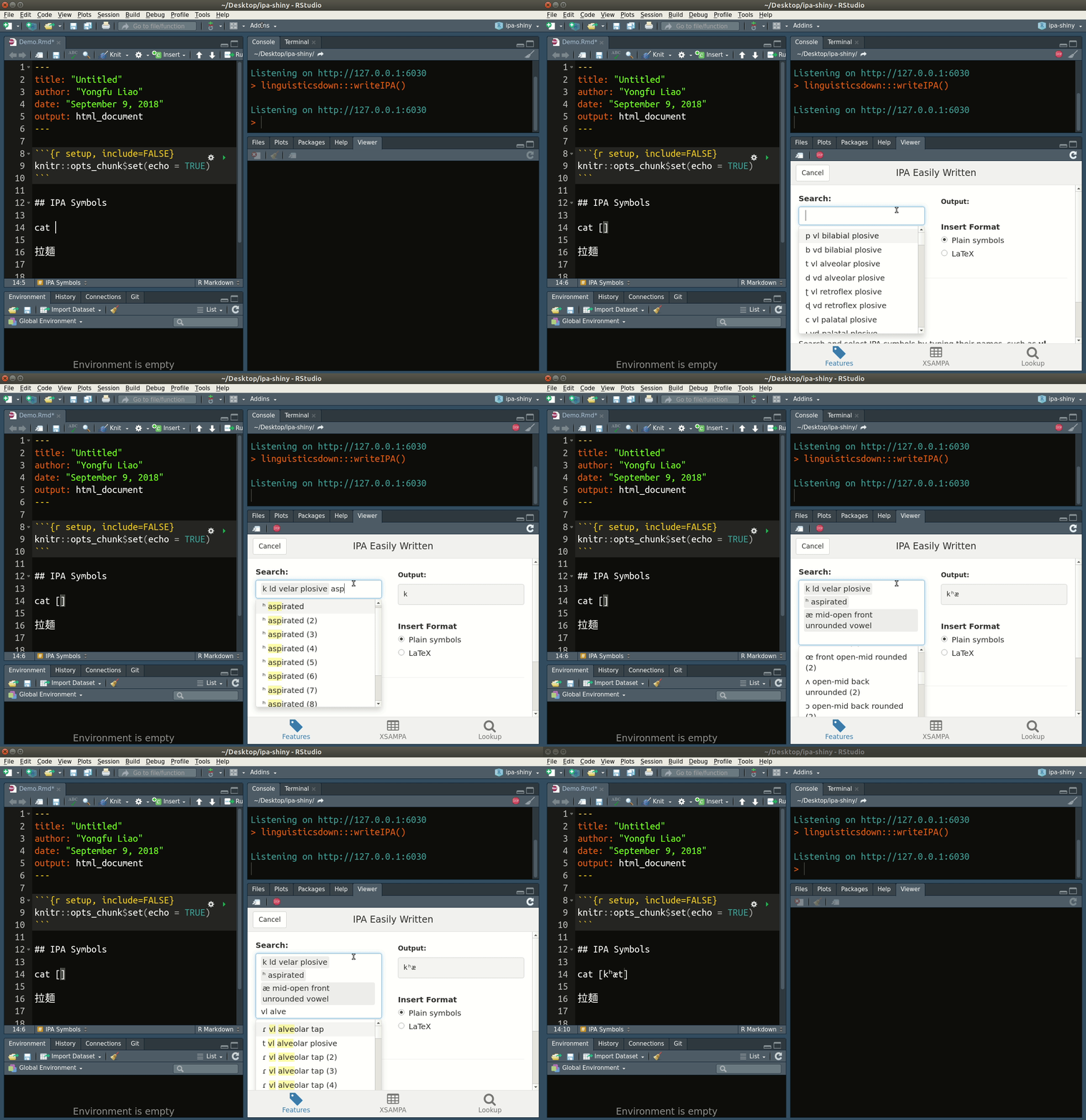
Sidebar Layout
Sidebar Layout
Left is Small
Some text in Left is small. Some text in Left is small. Some text in Left is small. Some text in Left is small. Some text in Left is small. Some text in Left is small.
Sidebar Layout
Left is small
Right is large
Incremental effect with sidebar layout
Incremental effect by using different pages
Left column is 20%
Right column is 75%
Sidebar Layout
Left is small
Right is large
Source code
Code (previous page)
## Sidebar Layout.left-column[### Left is small### Right is large].right-column[- Incremental effect with sidebar layout - Incremental effect by using different pages- Left column is 20%- Right column is 75%]Bg Image as Icon
background-image: url("../img/emo/great.jpg")background-size: 100pxbackground-position: 90% 8%Shortcuts
h: Helpc: Copy to new windowp: Presenter modem: Mirrorf: Full screenb: Black outt: Start/stop timernum + enter: Nav to pagenum
Shortcuts
h: Helpc: Copy to new windowp: Presenter modem: Mirrorf: Full screenb: Black outt: Start/stop timernum + enter: Nav to pagenum
Hit p to see the presenter's notes of this page.
Markdown Formatted Notes
- Item 1 blah
- yeee
- xaringan xaringan xaringan xaringan
remark.js
You can see an introduction of remark.js from its homepage. You should read the remark.js Wiki at least once to know how to
create a new slide (Markdown syntax* and slide properties);
format a slide (e.g. text alignment);
configure the slideshow;
and use the presentation (keyboard shortcuts).
It is important to be familiar with remark.js before you can understand the options in xaringan.
[*] It is different with Pandoc's Markdown! It is limited but should be enough for presentation purposes. Come on... You do not need a slide for the Table of Contents! Well, the Markdown support in remark.js may be improved in the future.
R Code
# a boring regressionfit = lm(dist ~ 1 + speed, data = cars)coef(summary(fit))# Estimate Std. Error t value Pr(>|t|)# (Intercept) -17.579095 6.7584402 -2.601058 1.231882e-02# speed 3.932409 0.4155128 9.463990 1.489836e-12dojutsu = c('地爆天星', '天照', '加具土命', '神威', '須佐能乎', '無限月読')grep('天', dojutsu, value = TRUE)# [1] "地爆天星" "天照"R Plots
par(mar = c(4, 4, 1, .1))plot(cars, pch = 19, col = 'darkgray', las = 1)abline(fit, lwd = 2)
Tables
If you want to generate a table, make sure it is in the HTML format
knitr::kable(head(iris), format = 'html')| Sepal.Length | Sepal.Width | Petal.Length | Petal.Width | Species |
|---|---|---|---|---|
| 5.1 | 3.5 | 1.4 | 0.2 | setosa |
| 4.9 | 3.0 | 1.4 | 0.2 | setosa |
| 4.7 | 3.2 | 1.3 | 0.2 | setosa |
| 4.6 | 3.1 | 1.5 | 0.2 | setosa |
| 5.0 | 3.6 | 1.4 | 0.2 | setosa |
| 5.4 | 3.9 | 1.7 | 0.4 | setosa |
DT::datatable( head(iris, 10), fillContainer = FALSE, options = list(pageLength = 8))Some Tips
- A countdown timer can be added to every page of the slides using the
countdownoption undernature, e.g. if you want to spend one minute on every page when you give the talk, you can set:
output: xaringan::moon_reader: nature: countdown: 60000Then you will see a timer counting down from 01:00, to 00:59, 00:58, ... When the time is out, the timer will continue but the time turns red.
Some Tips
- There are several ways to build incremental slides. See this presentation for examples.
Highlight Code
An example using a leading *:
if (a == b) {* a + b}Output:
if (a == b) { a + b}- This is used for plain-text code chunks.
An example using an ending #<<:
if (TRUE) { message("Important!") #<<}Output:
if (TRUE) { message("Important!")}- This is used for executable code chunks.
Macros (yaml)
remark.js allows users to define custom macros (JS functions) that can be applied to Markdown text using the syntax
![:macroName arg1, arg2, ...], or
Define macros in
macros.jsand include it in yaml withbeforeInitunder the optionnature:output:xaringan::moon_reader:nature:beforeInit: "macros.js"
Macros (create)
You can define a macro named scale in macros.js:
remark.macros.scale = function (val) { var url = this; return '<img src="' + url + '" style="width: ' + val + '" />';};Macros (create)
You can define a macro named scale in macros.js:
remark.macros.scale = function (val) { var url = this; return '<img src="' + url + '" style="width: ' + val + '" />';};Then the Markdown text
Macros (create)
You can define a macro named scale in macros.js:
remark.macros.scale = function (val) { var url = this; return '<img src="' + url + '" style="width: ' + val + '" />';};Then the Markdown text
will be translated to
<img src="image.jpg" style="width: 50%" />Some text Some text 
Some text
.center[]
Macros (usage)









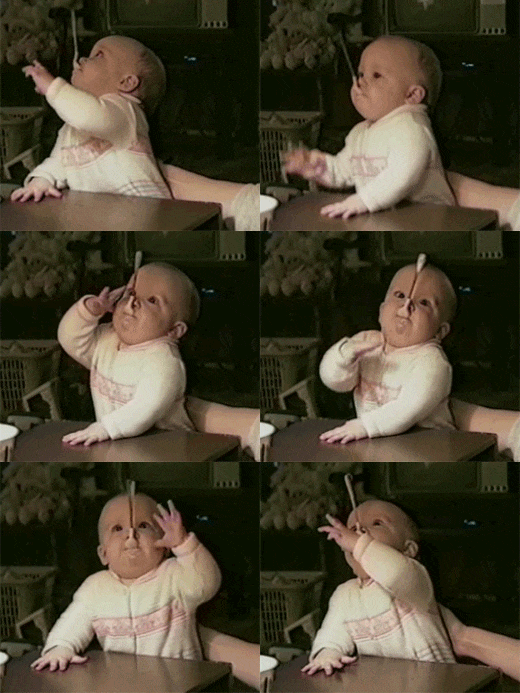
MathJax
\color{blue}{ \frac{a}{\color{red} b} \sqrt{\color{black} x} }ab√x